
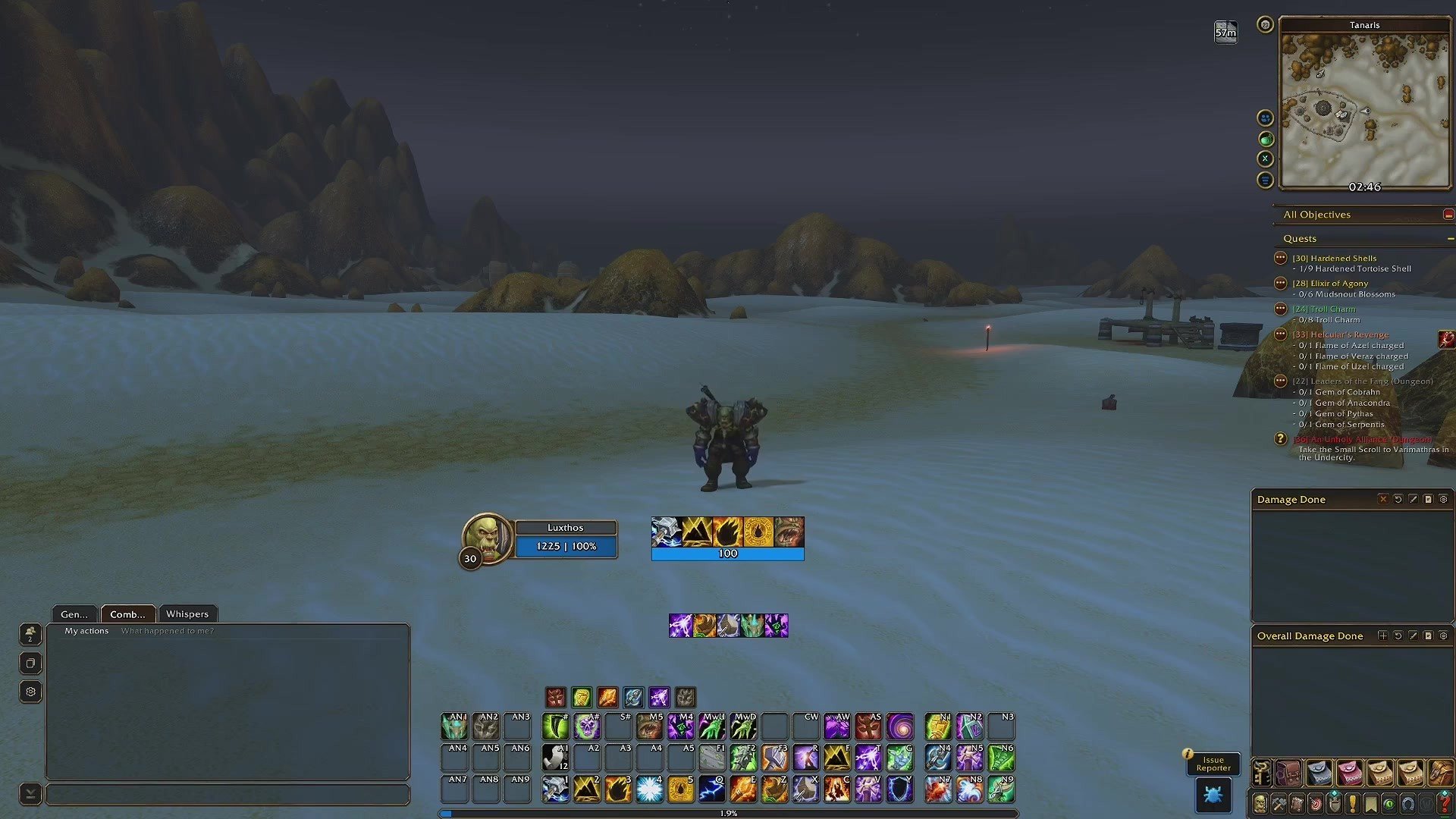
I've been sharing my interfaces with the community for a long time: WeakAuras packs, AddOn profiles and Cooldown Manager setups for Retail and Classic. Now it's Forever's turn. WeakAuras isn't part of the game anymore, and Forever uses the same AddOn structure as Retail, so I built a new interface on the same foundation as my Retail one, with a more classic look: the default World of Warcraft style with a few clean improvements. Nothing complicated.
This guide walks you through the install step by step, in the same order as my setup video. Everything is free, and it stays free. If you support the channel, the Luxthos UI app can also do the whole install for you in one click; I cover that at the end.
The short version
- Interface profile: install EllesmereUI, then import my profile. This is the only required part.
- Edit Mode layout: import it to place everything EllesmereUI doesn't control, such as the quest tracker, the bags and the micro menu.
- Cooldown Manager layouts: optional, one layout for each class and specialization.
- Additional AddOns: optional, a short list of quality-of-life AddOns I play with.
- Luxthos UI app: optional, for supporters. It installs and updates all of the above in one click.
Open my Forever interface page (opens in a new tab)
Where to find everything
Everything lives on luxthos.com: open the World of Warcraft menu, choose Forever, then Interface. The page shows a preview of the interface and holds every piece you need: the EllesmereUI profile, the Edit Mode layout, links to the Cooldown Manager layouts for each class, the list of additional AddOns with a link to each one, and the Luxthos UI app. Each Copy button puts a string on your clipboard and shows when that string was last updated.
Step 1: Install EllesmereUI and import my profile
EllesmereUI is what styles almost the entire interface, so it's required if you want this look. It isn't my AddOn: all the credit goes to its author. I only built the profile so you don't have to.
- Download EllesmereUI from CurseForge (the button is on the Interface page) and launch the game once. If you use other AddOns that change the same frames, such as unit frames, action bars or nameplates, turn them off so they don't conflict.
- On the Interface page, click Copy on the EllesmereUI profile.
- In game, open EllesmereUI: press Escape and click EllesmereUI, or type
/eui. - Go to Profiles & Presets, choose Import Profile and paste the string.
- Click Continue, give the profile a name and choose which modules to import, then reload when EllesmereUI asks.
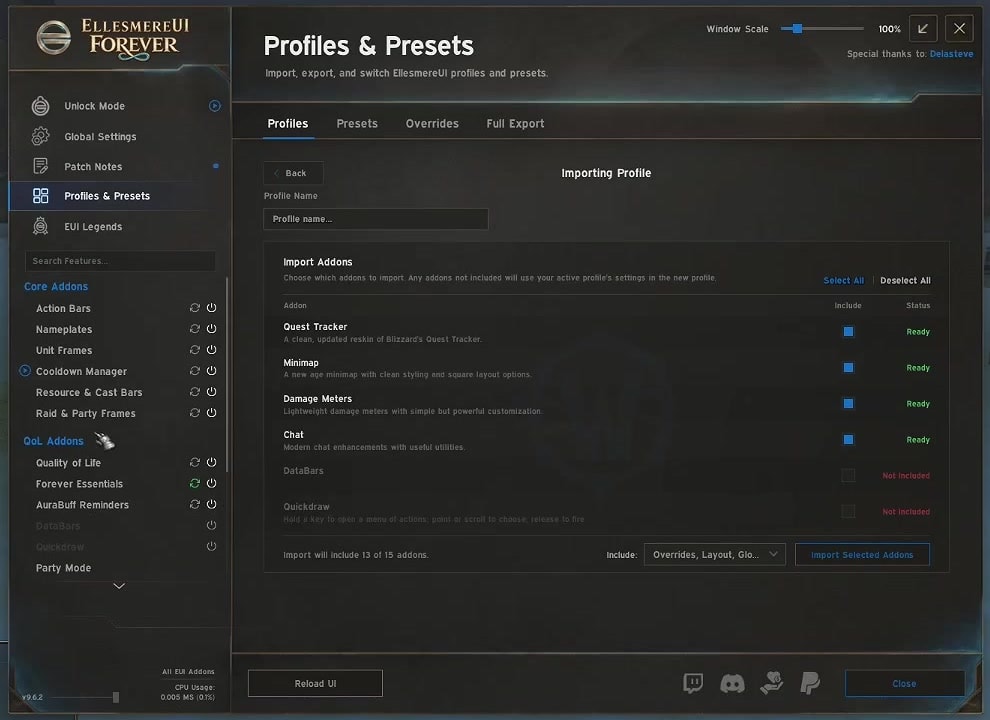
I import every module except DataBars and Quickdraw, but you can choose exactly what you want. That's one of the things I like most about this setup: every module is a small, independent AddOn. Turning a module off simply disables that part.
For example, let's say you only used my WeakAuras pack for its cooldowns and you want that look back. Keep the Cooldown Manager and the Resource & Cast Bars modules, uncheck everything else, and you get a clean default Forever interface with my Cooldown Manager on top. Personally, I like the extra modules: they add customization the game doesn't offer. For example, I removed the power bar and the extra resources from my unit frame, because my resource bar already shows that information and I don't want it twice on my screen.
Step 2: Import the Edit Mode layout
The Edit Mode layout places every element on your screen, including the ones EllesmereUI doesn't modify: the quest tracker, the bags, the micro menu, the minimap and the damage meter. Even if you don't use EllesmereUI at all, you can import it on its own to get my positions. If you use EllesmereUI, you need both: the profile doesn't control every element.
- On the Interface page, click Copy on the Edit Mode layout.
- In game, press Escape and click Edit Mode.
- Open the Layout drop-down and choose Import.
- Paste the string, give the layout a name and click Import.
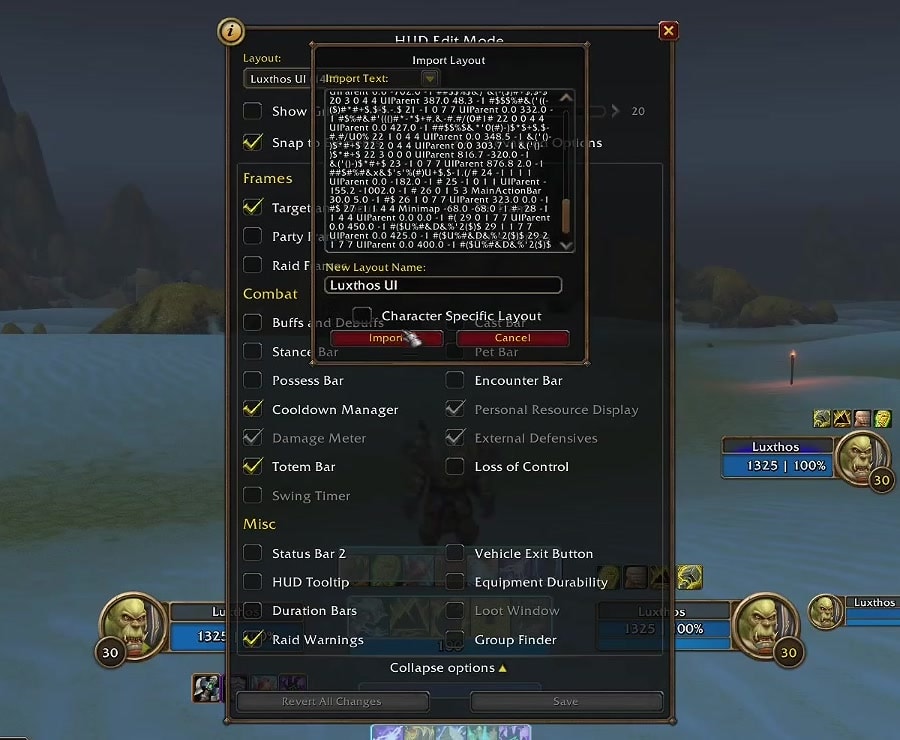
The layout is then selected, and every element moves into place. My profile and Edit Mode layout adapt to any resolution, including ultrawide and 4K monitors. At 1080p, you may want to adjust the UI Scale to your taste. And if you don't like my layout, simply skip this step: the profile works without it.
Step 3: Import the Cooldown Manager layouts (optional)
I also share Cooldown Manager layouts for every class, one for each specialization, sized and placed to fit the interface. Open the Cooldown Manager page from the Interface page and copy the layout for your class. In game, type /cdm, choose Import Layout and paste it. Then type /eui, open the Cooldown Manager section and click Repopulate so EllesmereUI picks up every ability.
One thing to keep in mind: Forever is a classic-style game, so specializations don't work quite the way they do in Retail. You aren't strictly an Enhancement Shaman; you're a Shaman who leans heavily into Enhancement, and hybrid builds are possible. You may need to adjust a layout to your own build over time. The layouts themselves are a work in progress too: I keep refining them as the game changes.
Step 4: Add the optional AddOns
Below the profiles, the Interface page lists the additional AddOns I recommend, each with a link to its download page. None of them is required. For example, OpenMap gives you a seamless world map in the Vanilla style, What's Training? shows what your trainer can teach you next, and BugSack with BugGrabber quietly collects Lua errors. Install the ones you want, and you get the same result you see on my screen.
The list isn't fixed: it's what I played with in the beta and plan to keep, and I add or remove AddOns as my setup changes. The Interface page always has the current list.
The easier way: the Luxthos UI app
If you'd rather not copy a single string, the Luxthos UI app does all of the above for you: it installs every AddOn I recommend with my profiles, the Edit Mode layout and the Cooldown Manager layouts, and keeps them up to date. It runs on Windows 10 and 11, and it's included with a Twitch sub (any tier, including Prime), a Patreon membership or a Luxthos membership: sign in with your luxthos.io account, which uses your Twitch login.
To be clear, the app is a quality-of-life tool for the people who choose to support the channel. It doesn't block or gate anything: every AddOn and every profile stays free to install by hand on the website.
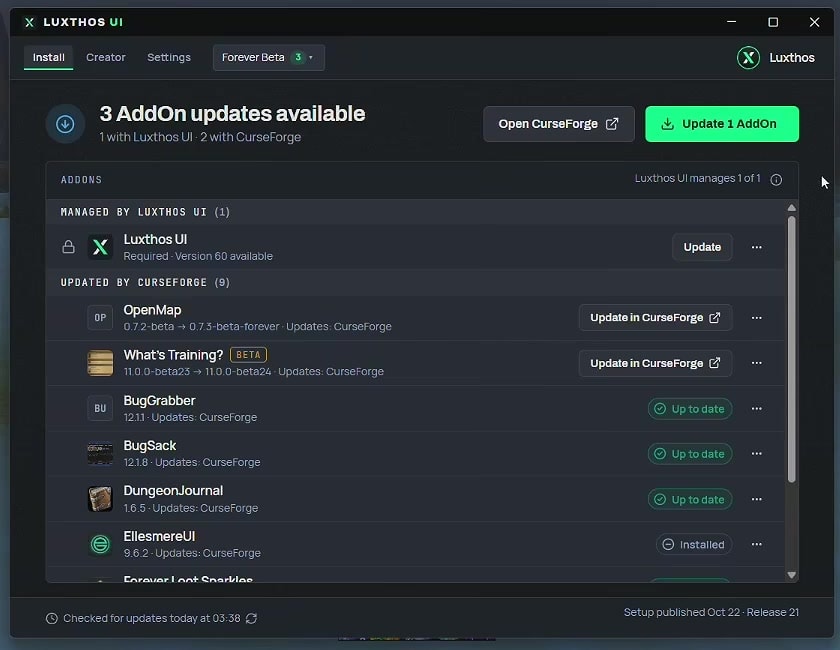
The app lists every AddOn it installed and shows which ones need an update. If you already have some of them, it recognizes them. In the settings, you choose which platform updates each AddOn: the app itself, CurseForge or Wago. If you aren't using an AddOn manager yet, I highly recommend one; my favorite is the standalone CurseForge app, and it's what I use. When an AddOn is updated through CurseForge, the app opens CurseForge for you, so you only keep one thing in mind: keep Luxthos UI up to date.
The app isn't meant to replace an AddOn manager. You can't search for new AddOns with it; it only handles the AddOns of my interface. It supports Forever and Retail, and if you have both installed, you pick the game from a menu.
Get the Luxthos UI app (opens in a new tab)
In game: the Luxthos UI AddOn
Once the app has done its work, log in to World of Warcraft. The Luxthos UI AddOn greets you and lets you install or update everything: my Edit Mode layout, my AddOn profiles and the Cooldown Manager layouts for your class. You can open it again at any time with /lux. If you don't want my AddOn profiles, uncheck them and they won't be imported; nothing is forced on you.
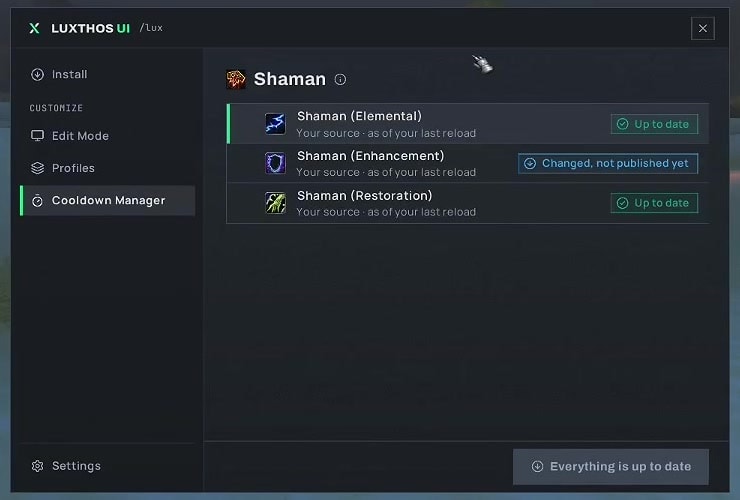
The Cooldown Manager section installs a layout for each specialization of your class, and each one shows whether it's up to date.
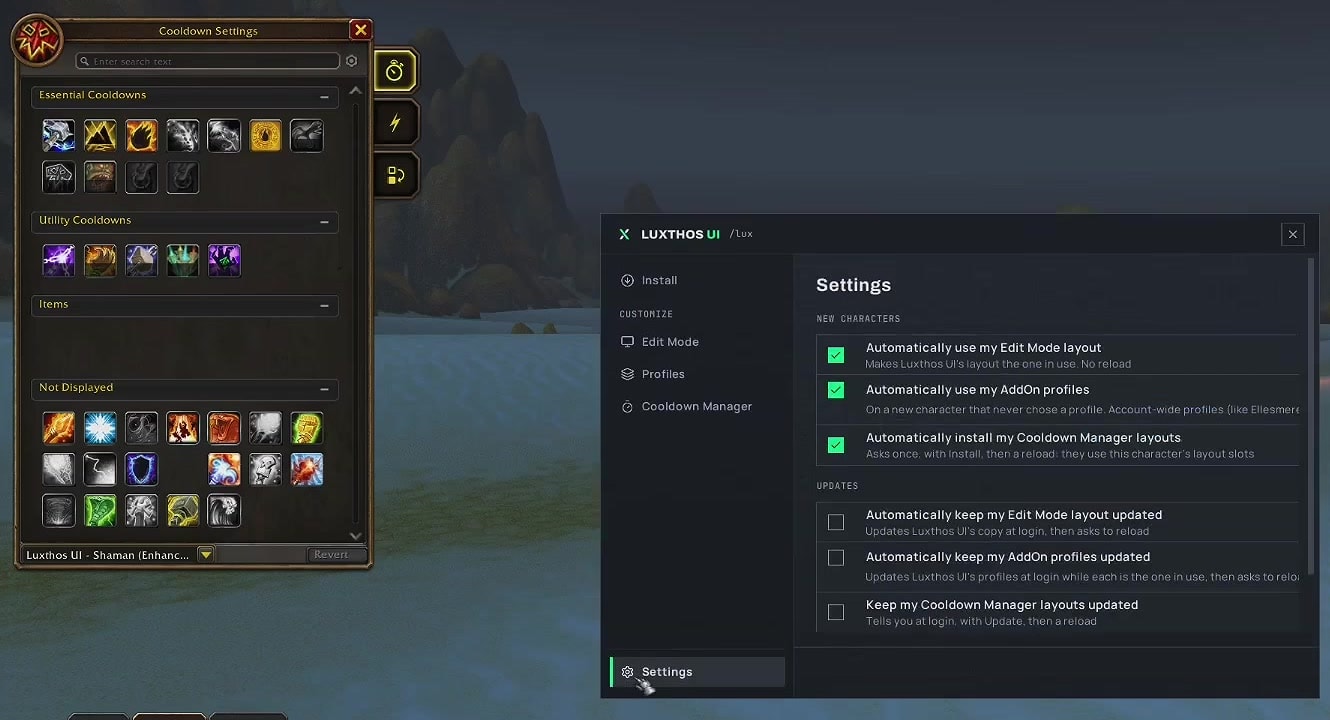
In the settings, you can have it apply my Edit Mode layout, my AddOn profiles and my Cooldown Manager layouts automatically on every new character. You can also have it keep everything updated automatically at login. That option is off by default, and for a good reason: if you customize the interface yourself, you probably don't want an update to replace your changes. Update when you're ready.
Prefer another look? EllesmereUI's styles
If the default Forever look isn't for you, EllesmereUI can restyle the whole interface in one click. Type /eui, open Global Settings and the Style tab. There are four styles, and Apply to All restyles every module at once:
- EllesmereUI Style: flat, clean and modern, closer to a pixel-perfect look.
- WoW Forever: Forever's bronze frames, gryphons and round badges. This is the one I chose.
- Blizzard Style: Blizzard's own frame and button art.
- Classic WoW UI: the original frames, rings and slots.
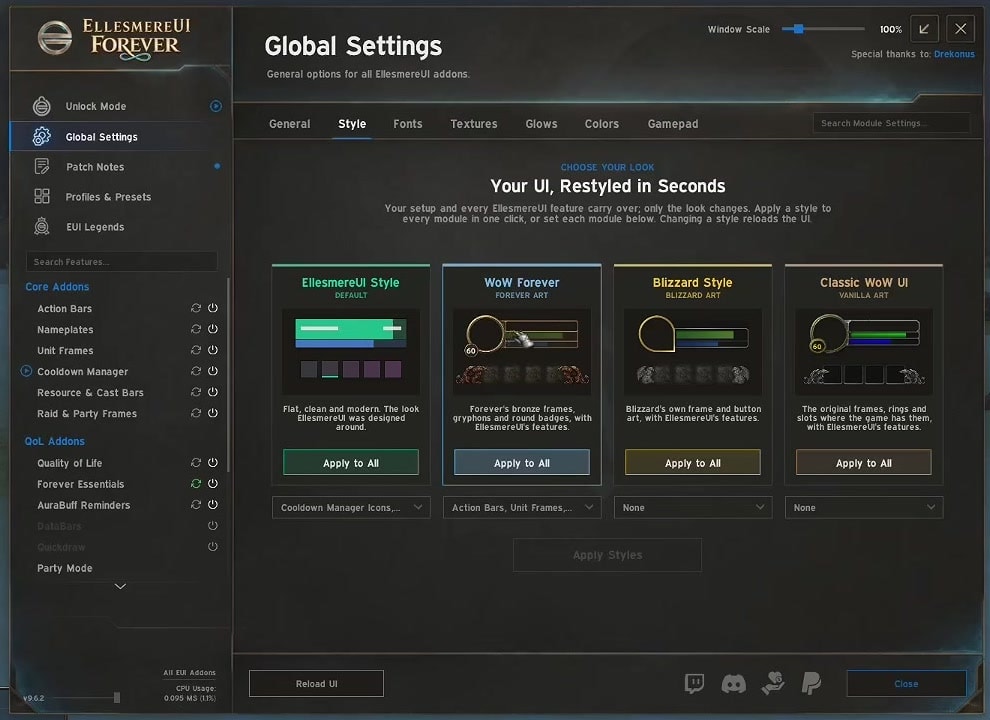
You can also mix them. In my profile, the Cooldown Manager and the resource bar keep the EllesmereUI style, because I want them to be precise, while everything else uses the WoW Forever style.
Common questions
Do I need the Luxthos UI app? No. Everything in this guide is free to install by hand. The app only saves you the copying and keeps everything updated.
Can I use only the Cooldown Manager? Yes. Import my profile with only the Cooldown Manager and Resource & Cast Bars modules, or turn the other modules off later in EllesmereUI.
Do I need to re-import after a patch? Only when a profile has been updated. Each Copy button on the Interface page shows when its string was last updated, and the app tells you when there's an update.
How do I go back to my old interface? In /eui, open Profiles and switch back to your previous profile, or turn EllesmereUI off in the AddOns list.
Does the app work on Mac? Not for now: it runs on Windows. On a Mac, install everything by hand from the Interface page.
Final thoughts
I wanted this interface to feel like original World of Warcraft, with the cooldowns looking the way my WeakAuras used to, and I'm very happy with the result. I'll keep updating it as Forever evolves, and it will stay free for everyone.
If something doesn't work, or you have an idea to improve it, ask in Discord with a screenshot, or drop by the stream on Twitch: I'll be playing Forever almost every day. See you in Azeroth.