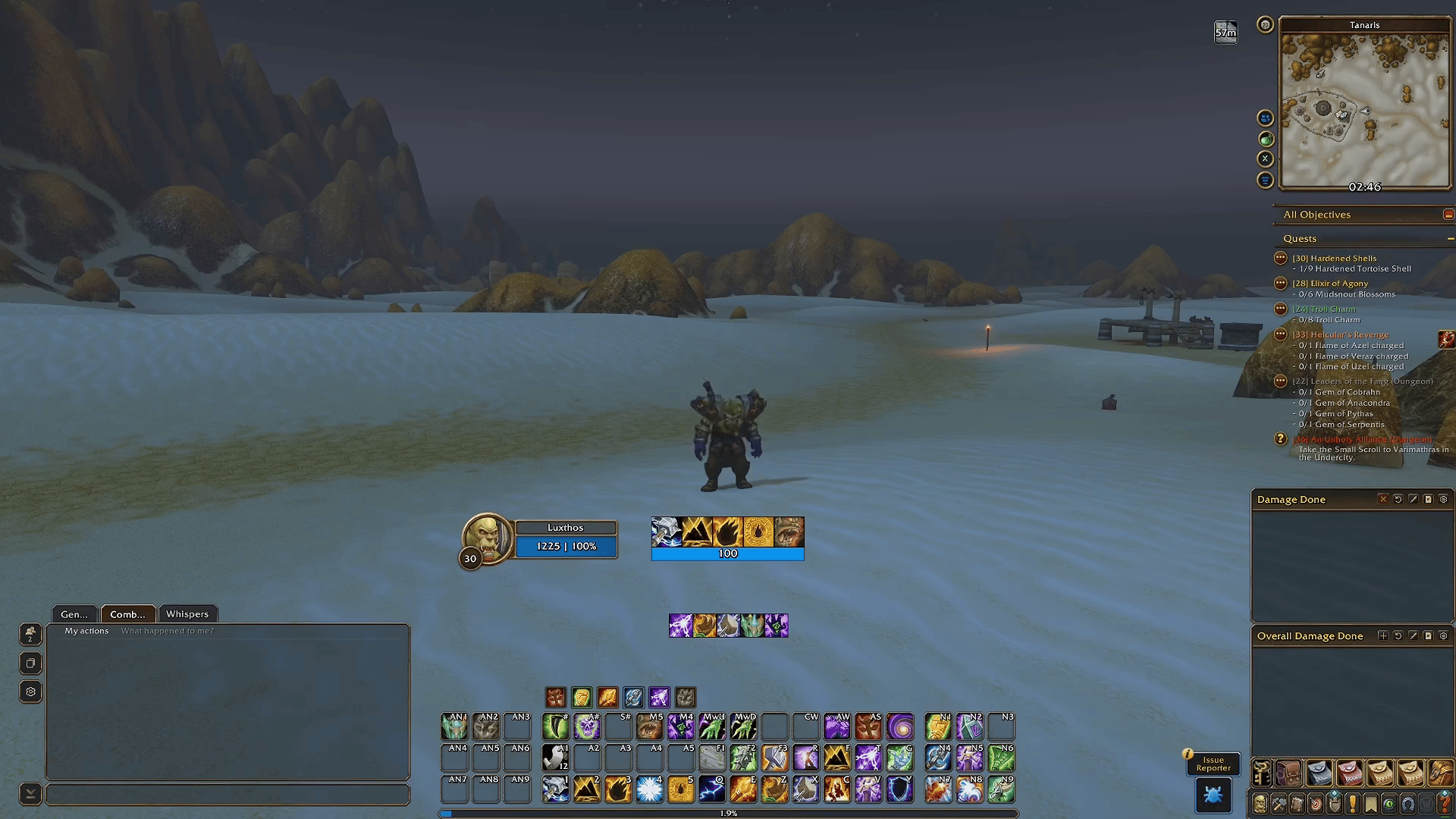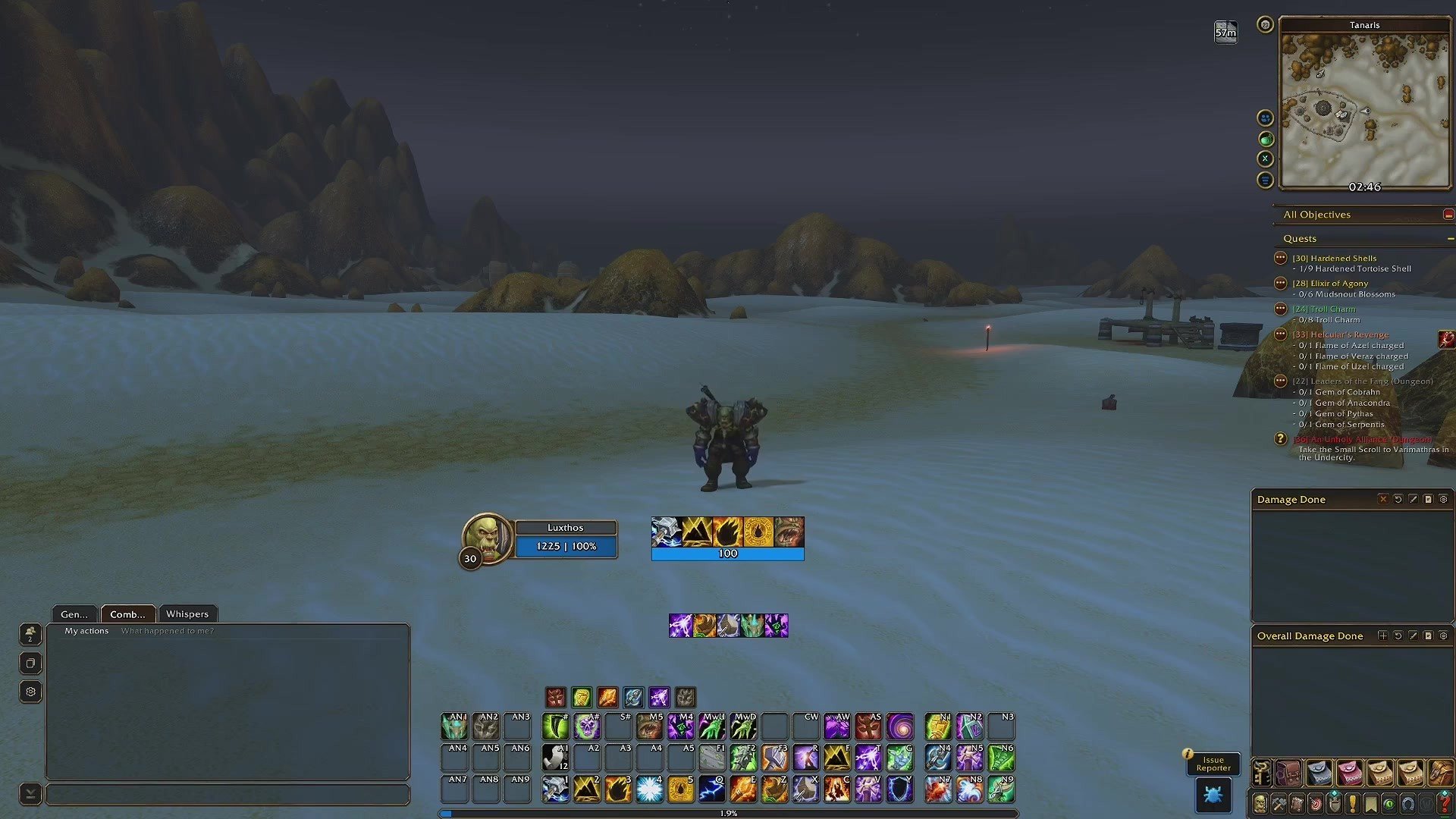

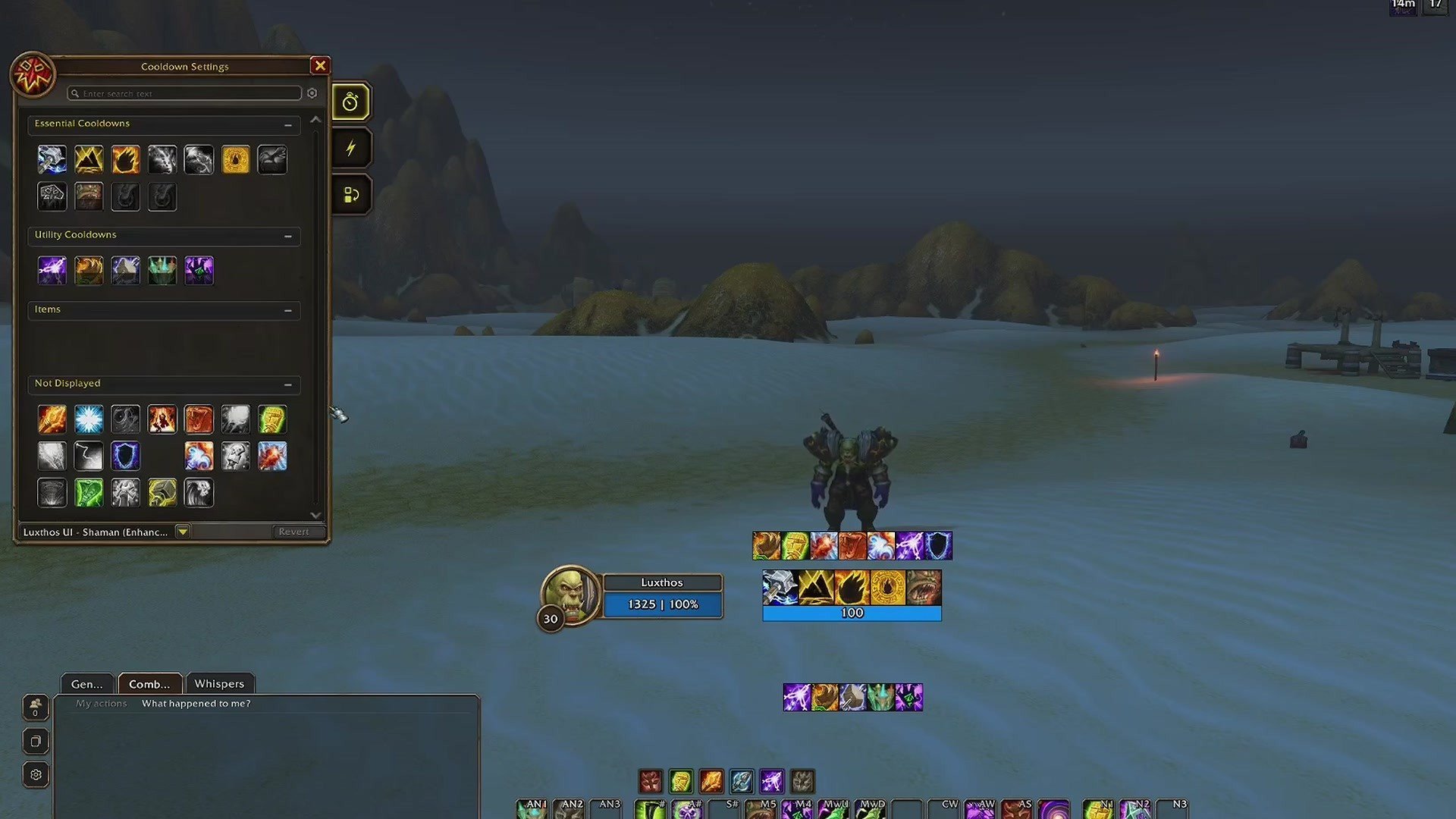
The Cooldown Manager is the heart of my World of Warcraft: Forever interface. It puts your rotation, your cooldowns and your procs in the middle of your screen, right where your eyes already are. In this guide, I explain what it is, how to import my layout for your class with /cdm, how to anchor, resize and arrange it, and how my layouts work for every class.
One thing before we start: Forever is still young, and both the Cooldown Manager and my layouts keep changing. This guide reflects the game at the time of writing, and each layout on my site shows the date of its last update.
The short version
- The Cooldown Manager is Blizzard's built-in tracker for your cooldowns and buffs. In Forever,
/cdmopens its settings. - I share 28 free layouts, one for every class and spec, on my Cooldown Manager page.
- To import one:
/cdm, Import, paste, name it and select it. If you use my interface, finish with/eui› Cooldown Manager › Repopulate. - You move and resize it in Edit Mode, like the rest of your interface.
- The Luxthos UI app installs every layout, with the rest of my UI, in one click.
Get my Cooldown Manager layouts (opens in a new tab)
What is the Cooldown Manager in WoW: Forever?
The Cooldown Manager is Blizzard's own tool for tracking your abilities. Forever uses the same AddOn structure as Retail, so WeakAuras isn't available there either: the Cooldown Manager takes its place in my interface. The good news is that it covers most of what my old class packs did, and it's part of the game.
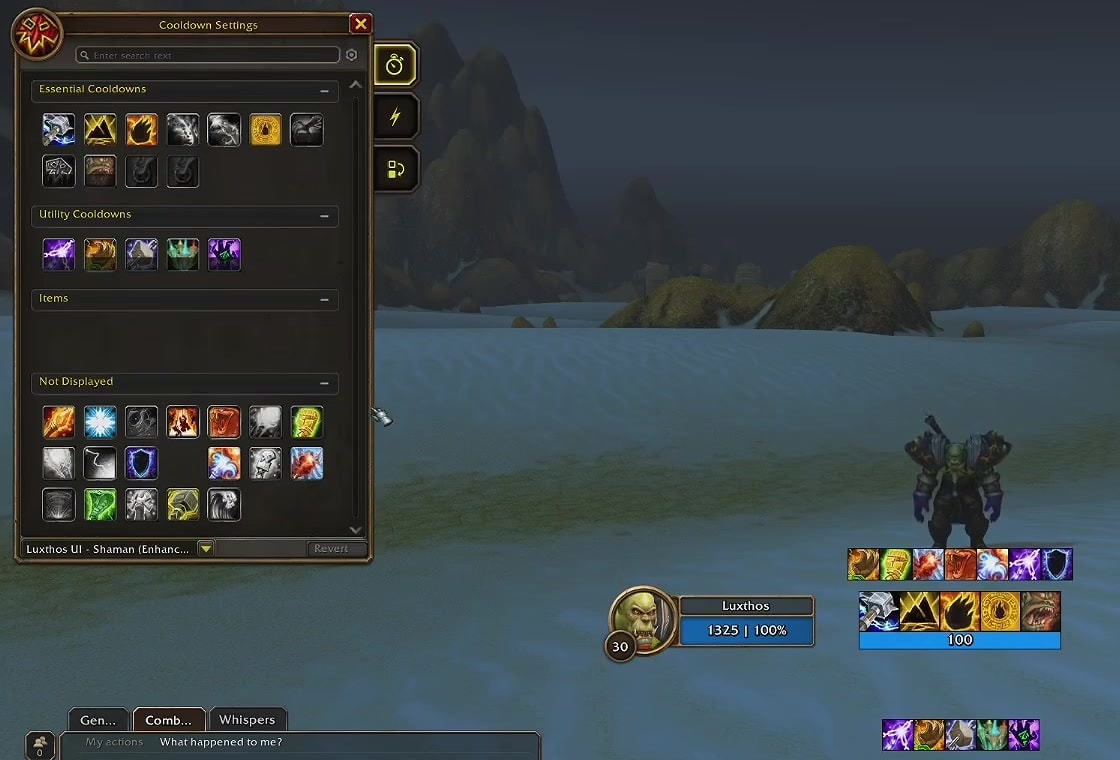
Your abilities are split into groups, and each group is its own element on your screen:
- Essential Cooldowns: the core of your class. Your rotational abilities and your damage cooldowns go here.
- Utility Cooldowns: defensives, interrupts, stuns and crowd control.
- Tracked Buffs: procs, damage over time effects and anything else you need to react to, shown as icons.
- Tracked Bars: the same kind of information, shown as bars instead of icons.
Anything you don't want to see goes to Not Displayed, at the bottom of the settings window.
Cooldown Manager or action bars?
One question I get very often is: why use the Cooldown Manager instead of simply moving your action bars to the middle of the screen? The answer comes down to preference. Personally, I like having both. The Cooldown Manager gives me a compact view in the middle of my screen: what's ready, what's active and for how long. The action bars give me the confidence that I'm pressing the right button, which helps when you play many classes and your muscle memory isn't perfect on every one of them.
There's also a practical advantage: the Cooldown Manager doesn't catch your clicks. If you turn the camera with your mouse over it, the camera moves and nothing is triggered by accident, which isn't the case with action bars in the middle of your screen.
How to import my Cooldown Manager profile with /cdm
My layouts are regular Blizzard Cooldown Manager layouts, so importing one takes less than a minute.
- Copy your layout. On my Cooldown Manager page (opens in a new tab), find your class and spec and click Copy. The string goes to your clipboard.
- Open the Cooldown Manager. In game, type
/cdm. The Cooldown Settings window opens. - Import it. Open the layout menu at the bottom of the window and choose Import. Paste the string, give the layout a name and select it.
- Repopulate, if you use my interface. Type
/eui, open the Cooldown Manager section and click Repopulate, so EllesmereUI's bars pick up the new layout.
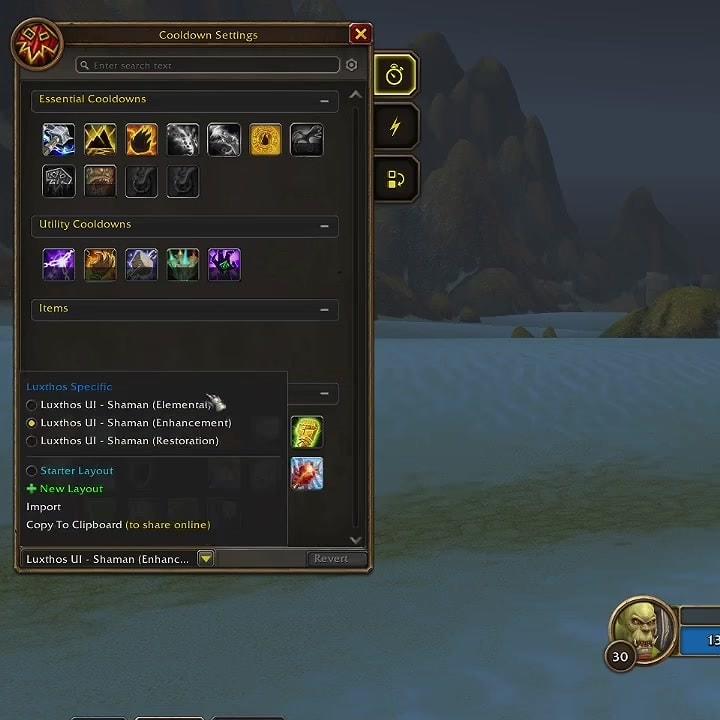
Repeat this for each spec you play. Every layout you import stays in that menu, so switching from one to another later is a single click.
Make sure you paste each string in the right place. Class layouts go into Blizzard's Cooldown Manager (/cdm); my interface profile goes into EllesmereUI (/eui › Profiles). If the import window doesn't let you type a name, the string was most likely pasted in the wrong one.
How to anchor, resize and arrange the Cooldown Manager
If you import my Edit Mode layout from the Forever Interface page (opens in a new tab), everything is already in place, and it adapts to any resolution. At 1080p, you may want to adjust UI Scale to taste. If you prefer your own placement, here's how it works.
Moving it in Edit Mode
Press Escape and open Edit Mode. Make sure Cooldown Manager is checked in the Combat section of the HUD Edit Mode window; otherwise, you can't select it. Each group is its own element: click one to select it and open its settings, then drag it where you want it.
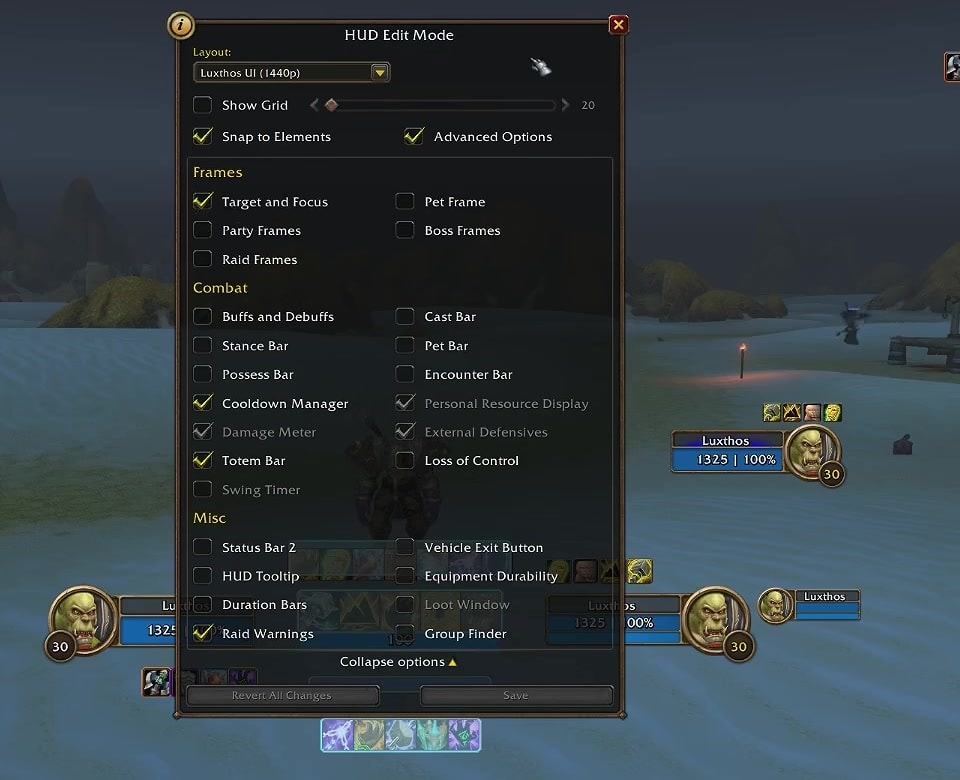
Personally, I keep my Essential Cooldowns centered between my player and target frames, just below my character. I wouldn't put anything right on the center line of your screen: it covers your character and what's happening at your feet, which is a good way to end up standing in fire.
Anchoring the groups together
The cleanest setup is to snap your Tracked Buffs on top of your Essential Cooldowns, so they follow when you move the main group. Turn off Show Grid, so you know you're snapping to the element and not to the grid, then drag the buffs toward the essential group until a horizontal line appears along its edge. Let go, and the two are attached: move the Essential Cooldowns and the buffs follow. You can do the same with the Utility Cooldowns, or leave a little room between the groups if you want your resource bars there.
I also anchor my main group from the bottom. That way, when a class has more abilities than fit on one row, the extra row grows upward instead of pushing everything below it.
Resizing
Each group's settings in Edit Mode let you change the icon size, the padding between icons, the number of icons per row, the opacity and the visibility (always visible, in combat only, or hidden). If a group is missing from your screen, check its visibility first and set it to always visible.
Arranging your abilities
Back in the Cooldown Settings window (/cdm), drag and drop any ability within a group or from one group to another: the order in the window is the order on your screen. If you play a tank, for example, you might want some defensives in your Essential Cooldowns rather than in Utility. Right-click an ability or a buff to add an alert, or to send it to Tracked Bars or Not Displayed.
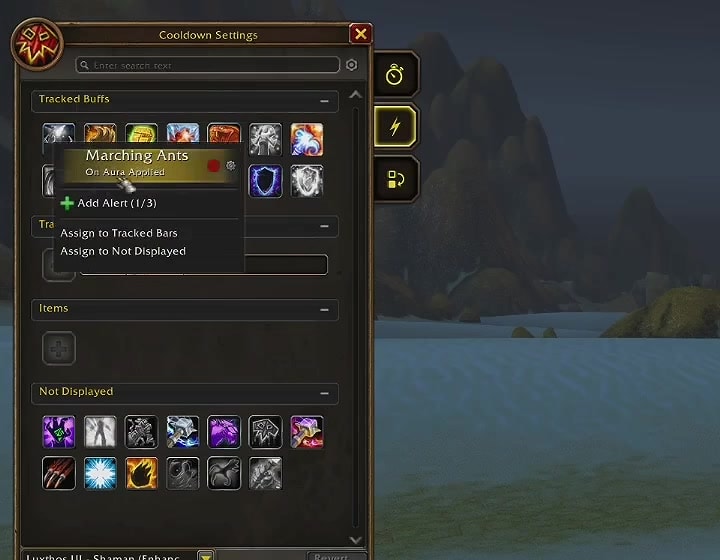
My advice: don't track everything. If you add every buff, you'll have a hard time seeing what matters. Keep the few that help you make better decisions in combat. I also prefer icons to bars: bars take a lot of screen space for the same information.
Styling it with my interface
In my Forever interface, EllesmereUI gives the Cooldown Manager its look: the borders, the spacing and the resource bars attached to it. Its modules are optional, so if all you want is a clean Cooldown Manager, you can turn off everything except the Cooldown Manager, the resource bars and the cast bar.
How my Cooldown Manager layouts work for every class
I share 28 layouts for the nine classes in Forever, one per spec, sized and placed to fit my interface:
- Warrior: Arms, Fury, Protection
- Paladin: Holy, Protection, Retribution
- Hunter: Beast Mastery, Marksmanship, Survival
- Rogue: Assassination, Combat, Subtlety
- Priest: Discipline, Holy, Shadow
- Shaman: Elemental, Enhancement, Restoration
- Mage: Arcane, Fire, Frost
- Warlock: Affliction, Demonology, Destruction
- Druid: Balance, Feral DPS, Feral Tank, Restoration
Every layout follows the same idea: the abilities you press most and your damage cooldowns in the Essential Cooldowns, your defensives, interrupts and crowd control in the Utility Cooldowns, and the procs and effects you need to react to in the Tracked Buffs.
Specs work differently in Forever
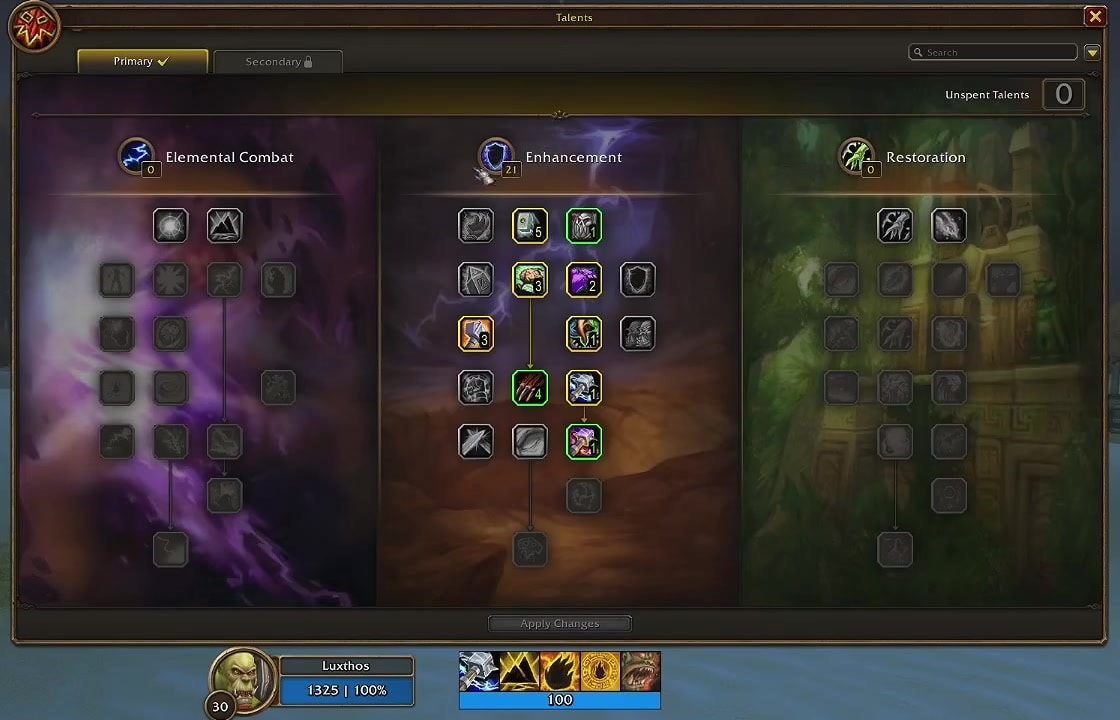
There's no real specialization in Forever like there is in Retail. You're not an Enhancement Shaman; you're a Shaman who puts most of your talent points into Enhancement, and hybrid builds are possible. My layouts are named after the talent tree you invest in most. If you play a hybrid build, start from the closest layout and move a few abilities around; switching between layouts is a single click in the layout menu. Expect to adjust it over time, too, as you level and learn new spells.
The easiest way: the Luxthos UI app
If you'd rather not copy a single string, the Luxthos UI app installs my whole interface in one click: the AddOns, the profiles, the Edit Mode layout and every Cooldown Manager layout for your class. When I update my setup, it tells you and updates yours, after backing up your current setup. I show it in action in my Forever UI video (opens in a new tab).
The app runs on Windows and is included with a Twitch sub (any tier, including Prime), a Patreon membership or a Luxthos membership. It's a thank-you for supporting the channel, not a requirement: every layout and profile stays free to install by hand on my site.
Get the Luxthos UI app (opens in a new tab)
Cooldown Manager: common questions
Do I need EllesmereUI to use your Cooldown Manager layouts?
No. They're Blizzard Cooldown Manager layouts. They're sized and placed to fit my EllesmereUI interface, but they work on their own.
An ability is missing from my Cooldown Manager. What do I do?
Type /eui, open the Cooldown Manager section and click Repopulate. If it's still missing, look for it in Blizzard's Cooldown Manager with /cdm. If it isn't there either, the game doesn't offer it to the Cooldown Manager, and there's nothing else to be done.
I can't name the layout when I import it.
The string was probably pasted in the wrong place. Cooldown Manager strings go into Blizzard's Cooldown Manager (/cdm › Import); interface profiles go into EllesmereUI's Import Profile window (/eui › Profiles).
Do I need to re-import my layout after a patch?
Only when the layout has been updated. Each Copy button on my Cooldown Manager page shows when its string was last updated, and the Luxthos UI app tells you when there's an update.
Can I change my layout after importing it?
Yes, and I encourage it. Once it's imported, it's your layout: move abilities between groups, hide what you don't use and add the alerts you like. My layouts are a starting point, not the only right way to play.
That's everything you need to get the Cooldown Manager working in Forever. If something doesn't look right, ask in my Discord (opens in a new tab) with a screenshot; it's the fastest way to get help. See you in Azeroth.