

Forever · My full UI setup
Interface
My Forever interface: the AddOns and Edit Mode layout I play with, and how to set them up.
Easiest installLuxthos UI app
Download nowInterface Profile
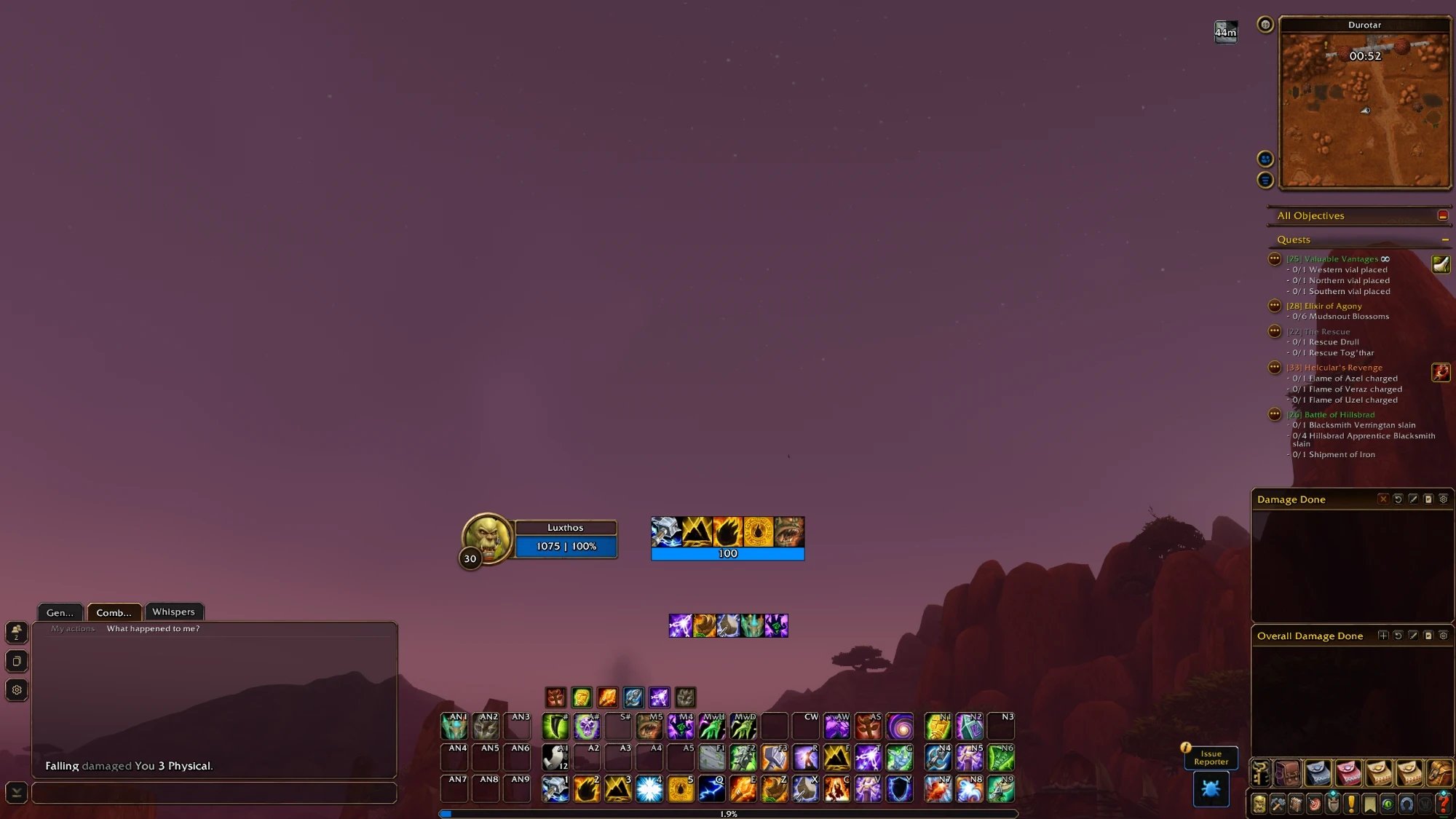
My profile and Edit Mode layout adapt to any resolution. At 1080p, you may want to adjust UI Scale to taste.
Install EllesmereUI first, then copy my profile.
EllesmereUI profile
Imports as “Luxthos UI”
Edit Mode layout
Copy the layout and import it in Edit Mode.
Edit Mode layout
Imports as “Luxthos UI”
Cooldown Manager
Additional AddOns
- Get Zygor: Zygor Guides (opens in a new tab)
Zygor Guides
In-game leveling guides for Forever and Retail.
Code
LUXTHOS20% off any Zygor plan with my code.
- CurseForge: BugGrabber (opens in a new tab)
BugGrabber
Catches errors for BugSack.
- CurseForge: BugSack (opens in a new tab)
BugSack
Collects Lua errors quietly.
Install BugGrabber too.
- CurseForge: DungeonJournal (opens in a new tab)
DungeonJournal
Dungeon quests, locations and boss loot.
- CurseForge: Forever Loot Sparkles (opens in a new tab)
Forever Loot Sparkles
Makes quest items, herbs and ore sparkle.
- CurseForge: Forever Quest Tint (opens in a new tab)
Forever Quest Tint
Highlights new Forever quests.
- CurseForge: OpenMap (opens in a new tab)
OpenMap
A seamless world map in the Vanilla style.
- CurseForge: Questie (opens in a new tab)
Questie
Quests and objectives on your map.
- CurseForge: What's Training? (opens in a new tab)
What's Training?
What your trainer can teach you next.

Easiest install
Luxthos UI app
The Luxthos UI app installs the whole UI (AddOns, profiles, Edit Mode and Cooldown Manager) in one click and keeps it up to date.
Setup video
OptionalInstall steps
Free · five stepsInstall EllesmereUI
Download it from CurseForge with the button above, then launch the game once. Turn off other addons that change the same frames (unit frames, action bars, nameplates), so they don't conflict.
Copy the profile
Press Copy on the EllesmereUI profile above. The string goes to your clipboard.
Import it in game
Type
/eui, open the Profiles page and press Import Profile. Paste the string, name the profile and confirm, then reload when EllesmereUI asks.Optional: Cooldown Manager layout
Copy your class's layout on the Cooldown Manager page and import it with
/cdm. Then type/eui, open the Cooldown Manager section and click Repopulate.Add the extras
Install the additional AddOns listed above.